Python is one of the easiest and most versatile programming languages to learn today — and it's perfect for writing automation scripts. This tutorial takes you from zero to a working script that automatically tidies up your "Downloads" folder. Even if you've never written code before, you can finish this in about 20 minutes.
Why Python?
Python has three big advantages:
- Readable — the syntax reads almost like English
- Free — completely free, and runs on Windows / Mac / Linux
- Rich libraries — a huge set of ready-made tools; many tasks are one line of code
Step 1: Install Python
Go to python.org/downloads and download the latest version. During installation, make sure to tick Add Python to PATH, then keep clicking Next.
Once installed, open Command Prompt (press Win + R, type cmd) and run:
If you see something like Python 3.12.x, you're good to go.
Step 2: What problem are we solving?
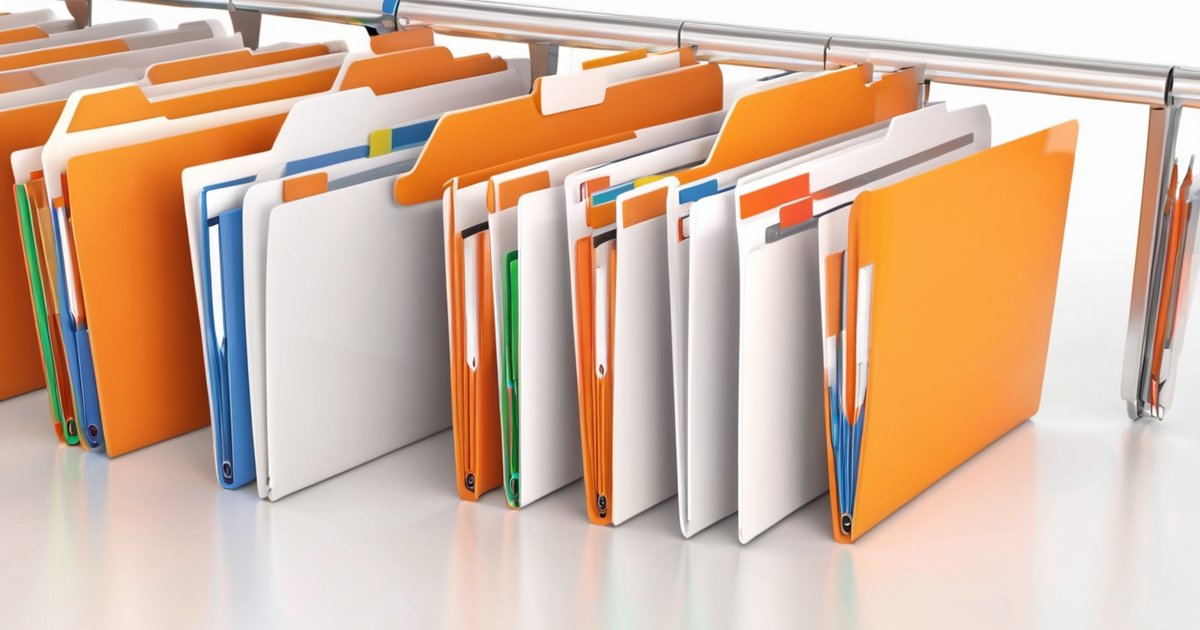
Is your Downloads folder a mess? Photos, PDFs, installers and zip files all piled together. We'll write a small script that sorts files by type and moves them into matching subfolders.
Step 3: Write the script
Create a new file called organize.py (Notepad is fine) and paste in the code below:
Line by line
- import os, import shutil — load Python's built-in tools: os handles file paths, shutil handles moving files.
- os.path.expanduser("~/Downloads") — automatically finds your Downloads folder (~ means home on Mac / Linux).
- categories — a dictionary that defines which extensions belong to which category.
- os.listdir(folder) — lists every file in the folder.
- os.path.splitext(filename)[1] — extracts the extension, e.g. report.pdf → .pdf.
- shutil.move(...) — moves the file into the matching subfolder.
Step 4: Run it
In Command Prompt, navigate to where you saved organize.py, then run:
That's it! Your Downloads folder is now neatly sorted. Run the script once after each download session and it stays tidy.
Bonus: Run it automatically every day
Want it to tidy up daily? On Windows, use Task Scheduler:
- Open "Task Scheduler" (press Win and search for it)
- "Create Basic Task" → set the trigger to "Daily"
- Set the action to "Start a program", with python as the program and C:\path\organize.py as the argument
Summary
This Python tutorial summary: Congratulations — you've just written your first Python automation script. This is only the beginning: with the same approach you can auto-rename files, auto-backup, and auto-generate reports. If you want to learn more, or apply this thinking to your business (like auto-replying on WhatsApp or auto-generating reports), feel free to talk to us.